|
|
|
|
|
The Word... Not Microsoft Word
(Part 2) |
|
|
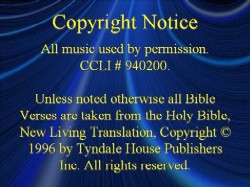
(for part 1 of this article, click here) The Message The second obvious place for the use of Scriptures is within your message. Personally, I tend to speak fast. I’m actually writing this very slowly because I know that not everyone is a fast reader. I also tend to use a lot of Scriptures in my messages. And because of that combination it’s very difficult for people to flip in their Bibles and follow the message at the same time. Most people don’t bother, and even though they are hearing the word they aren’t actually seeing it. By displaying at least the key Scriptures you are using in your message, the visual impact reinforces the context of the message. Because we primarily use one translation of the Bible and it is identified in the copyright slide that we display during the announcements the only time we identify the translation we are using is if it is different from our primary translation. When we do need to identify a translation we simply note after the Scripture verse with the appropriate abbreviation. [i.e. John 3:16 (KJV)] For God so loved the world, that he gave his only begotten son that whosoever believeth in him should not perish, but have everlasting life.
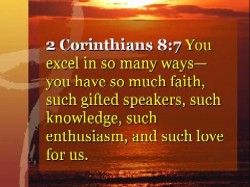
We use the Georgia font, because it is our Scripture font. If you see text displayed in Georgia at BCC you know that it’s from the Bible. There are several different ways of displaying the Word during your message, the main thing is to keep it legible and don’t cram too much onto one slide. Remember, slides are free. Maintain the continuity of your message by continuing to use the same background for your scripture slides but use a distinct style that says, “Hey everyone, this is the Bible!” Most recently, I’ve started to use a semitransparent box with my scripture set into it. I use yellow for the text and a bold white for the reference.
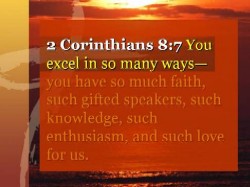
In your presentation, you can use shading and bold to emphasis a particular word or phrase that you wish highlight.
(Article © Denn Guptill /
PowerPoint4Preaching.com, used with permission)
|
|
|
|